One window
What does the agent get in a single window?
All requests in one place — whichever channel the customer used.
Request management
All requests on one Kanban board by status — you see what is new, in progress and waiting.
Customer timeline
Calls, emails and messages — one timeline on the same customer.
Missed-call handling
Shows only unanswered calls, so none is left without a reply.
AI chatbot
Resolves routine questions itself and hands the conversation over with full context.
AI analytics
Summary, sentiment and keywords from every call — without listening manually.
Customer ratings
A rating after the call, rolled up into one NPS number with a trend over time.
Customer card
What does the agent see when picking up?
The customer card opens together with the call, and after the call a comment and a topic remain. The agent never asks who is calling or why.
- Customer cards are created and managed in the same system
- Customer information: address, services, open balances and more
- Comments after the call and conversation tags
- Knowledge tree at hand and a notice about call recording
Kanban
How are customer requests managed?
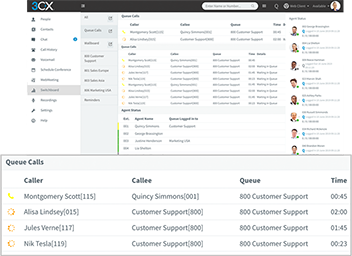
Requests are laid out in columns by status on one screen. A card is moved to another column and the same action changes the status — nothing has to be marked separately. A card is born from any channel: a call comment, an email, a web chat or an SMS.
- Columns are statuses: new, in progress, waiting for customer, done
- The card shows the topic and the owner, so nobody asks who is taking what
- The customer immediately gets an automatic confirmation
- SLA control, deadlines with reminders and escalation by rules
- Column height shows the build-up — where the queue grows, there is the bottleneck
Channels
Which channels are customers served on?
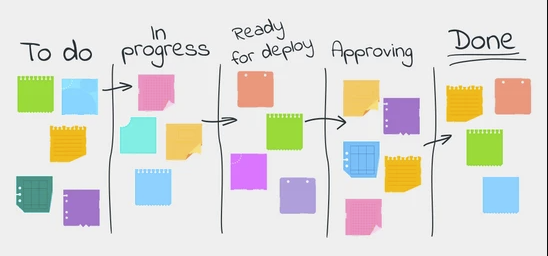
All channels come into the same window, so the agent does not jump between programs. Website chats and AI chatbot conversations arrive with a notification; a chat that needs work becomes a request in one action, together with the whole transcript.
- Phone, email and chats in one workspace
- Web chat, SMS, WhatsApp Business API, Facebook Messenger and Viber
- Quick reply templates, file and media handling, automatic distribution
- Video conferences with screen sharing and a wallboard
Working time
How is the time actually worked tracked?
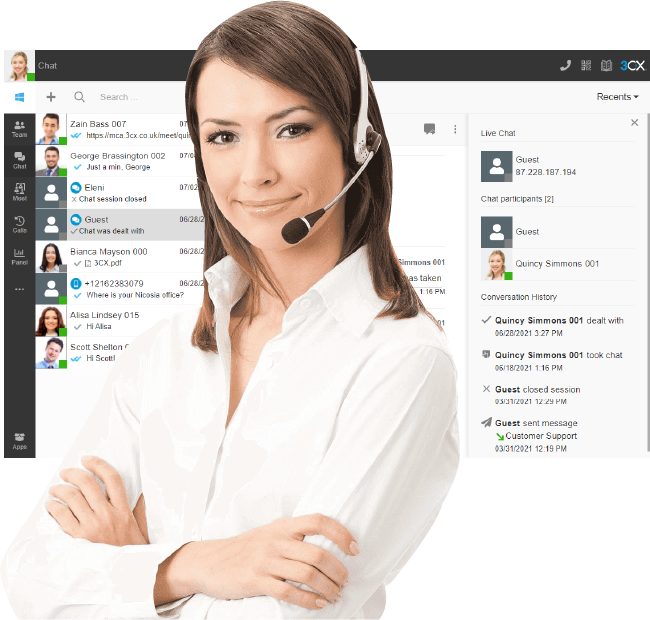
Working time is recorded in the agent window itself — from login to logout, with every break. The manager gets a productivity and KPI report for every agent without a separate timekeeping tool.
- Login and logout times
- Breaks: away, wrapping up after a call, lunch and other pauses
- Total worked and a detailed report for every agent
- Consultant productivity monitoring and a KPI report for the manager
Reports
Which reports does the manager see?
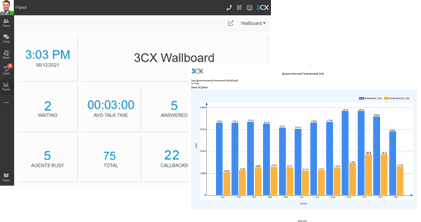
Statistics are shown in real time, and the history lets you go back to a specific conversation.
Real time
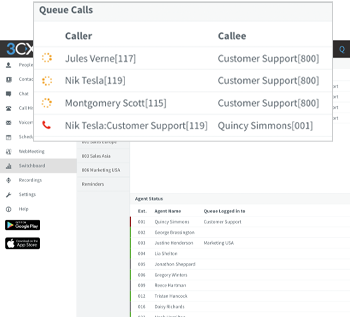
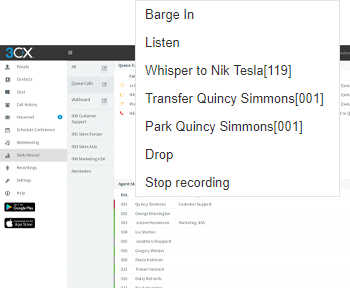
Switchboard and wallboard, conversation playback, listen, whisper and barge in.
Dashboards
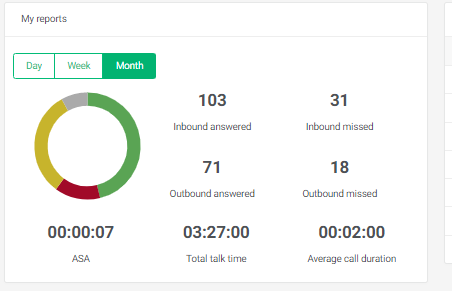
Personal and team dashboards, daily and monthly summaries, answered, missed and called-back calls.
Service quality
SLA statistics, queue reports, CSAT and NPS next to the other service reports.
Export
Excel export, and through the API the data feeds BI tools such as Power BI.
In the system
How it looks in the system
Views from the working system — not mock-ups.
Integration
How is Agent Desktop connected to your systems?
Agent Desktop works with your phone system (PBX) and 3CX; other systems connect through the REST API, so the agent does not need a separate tool to look data up.
Microsoft 365
Outlook contacts, calendar and email in the same place; Teams and the user directory (Entra ID / Active Directory).
CRM and ERP
Salesforce, Microsoft Dynamics, HubSpot, Zendesk and others through the API — or Plus1CX CRM built in.
REST API
HTTPS and JSON; extra information about the call is passed both ways.
Data and rights
Roles, recording access as a separate right, audit logs, retention schedules and deletion on request.
FAQ
Agent Desktop — frequently asked questions
Which channels does Agent Desktop serve?
Calls, email and helpdesk requests, web chat, SMS, Facebook Messenger, WhatsApp and Viber, as well as video conferences with screen sharing. All channels are visible in the same window.
Is the whole customer history visible?
Yes. Calls, emails, chats and messages run in one customer timeline, and next to every entry the comment, the topic and who handled it remain.
How does the Kanban request board work?
Requests are laid out in columns by status: new, in progress, waiting for customer, done. The status changes by moving the card. A card is born from any channel: a call comment, an email, a web chat or an SMS.
Can call lists be loaded for outbound campaigns?
Yes. Lists are loaded by import or through the API from your system, and the auto dialer or NEXT Call works through them. Inbound calls are distributed through queues by the rules you set.
How is staff working time tracked?
Login and logout times, breaks (away, after-call wrap-up, lunch) and the total worked are recorded in the agent window. A detailed and a KPI report are built from that.
Which systems does Agent Desktop connect to?
It works with 3CX and your PBX. Data is exchanged with Microsoft 365, Outlook, Teams, Entra ID / Active Directory, and with CRM and ERP systems — Salesforce, Microsoft Dynamics, HubSpot, Zendesk and others — through the REST API.
How do deployment and support work?
Deployment goes in stages: we discuss your process, prepare the system, go live and maintain it. After go-live requests are accepted by phone, email and ticket, each with a status and a history.
Related solutions
We will show how Agent Desktop would look in your team
Write to us which channels you serve customers on today, how you register requests and which reports you are missing.
Book a demo
Tell us what you would like to automate — we will show how it would work in your case. Only the email address is required.